Files
DJV ships with support for the following formats:
- Image sequences: Cineon, DPX, JPEG, OpenEXR, PNG, PPM, SGI, TGA, BMP, TIFF
- Movie codecs: MJPEG, MPEG-2
- Audio codecs: FLAC, MP3, WAV
- Timelines: OTIO, OTIOZ
- Experimental: USD
Different formats may be available depending on how DJV was built, or by using an external FFmpeg command.
Opening files
You can open files and folders in three ways:
- From the File menu or File tool bar
- By dragging and dropping onto the main window
- From the command line
Opening a folder opens every supported file in that folder (non-recursively).
Shortcuts:
- Open: Ctrl+O
- Open with audio: Ctrl+Shift+O
- Reload: Ctrl+R
- Close: Ctrl+E
- Close all: Ctrl+Shift+E
Image sequences can be opened from the command line by either specifying the first frame or using the “#” wildcard. For example:
djv render.#.exr
The native file browser is enabled by default on Windows and macOS. To use DJV’s built-in file browser instead, change the option in the Settings tool.
The built-in file browser
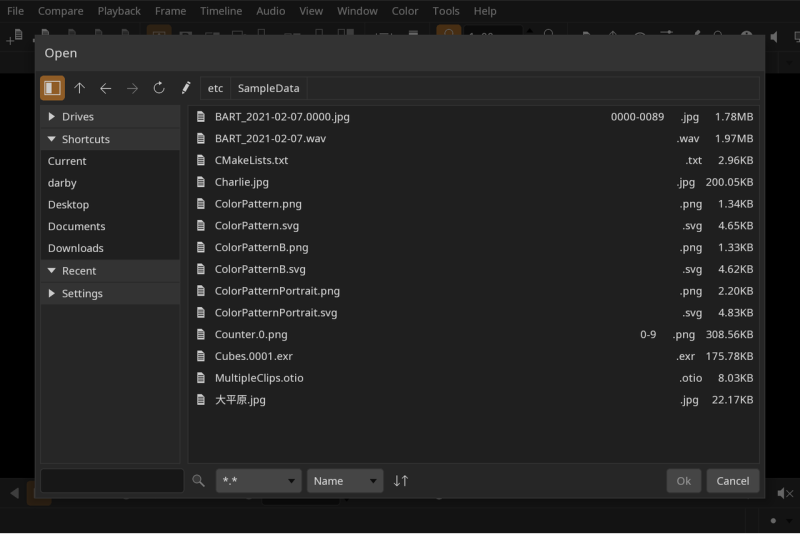
The built-in file browser has a panel on the left for navigation and a file list on the right:
- Drives — Mounted drives and volumes.
- Shortcuts — Common locations such as the home, Desktop, Documents, and Downloads folders.
- Recent — Recently visited directories.
Above the file list are buttons to go up a directory, navigate back and forward, reload, and edit the current path, along with a row of path buttons for quickly jumping to any parent directory. Below the list, a search box filters by name, an extension menu filters by file type, and the sort menu and direction button order the results.
Image sequences are shown as a single item with their frame range, so a multi-thousand-frame render appears as one entry rather than thousands.
Switching files
To switch between open files, use the File/Current menu, the Tab Bar, or the Files tool.
Locations: File menu, Tab Bar, Files tool
Shortcuts:
- Next file: Ctrl+Page Down
- Previous file: Ctrl+Page Up
FFmpeg plugin
The FFmpeg plugin provides support for movie and audio files. Only a limited set of codecs is enabled in the open source packages, to enable additional codecs use the FFmpeg command described below, or build from source.
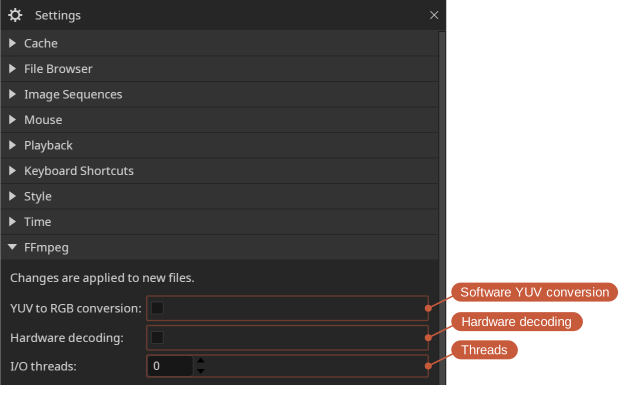
Changes take effect on newly opened files; reload (Ctrl+R) to apply them to the current file.
- Software YUV conversion - Convert YUV to RGB on the CPU instead of on the GPU. Off by default: the decoded YUV frame is uploaded directly and converted in the display shader, which is faster and avoids an extra frame copy. Enable this to perform the conversion in software before display.
- Hardware decoding - Decode video on the GPU (VideoToolbox on macOS, Direct3D 11 on Windows) when the file is compatible. Off by default. Files that are not compatible will automatically fall back to software decoding.
- Threads - The number of threads used for decoding. The default,
0, lets FFmpeg choose automatically based on the system.
FFmpeg command
To support additional formats and codecs, you can configure DJV to use an external FFmpeg command. FFmpeg runs as a sub-process and streams decoded video and audio to DJV for display.
The paths to the ffmpeg and ffprobe commands are set in the Settings tool.
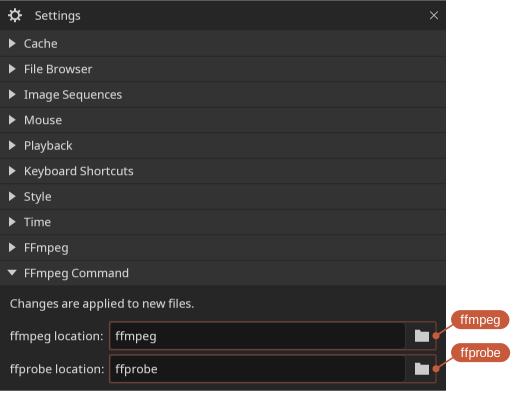
Changes take effect on newly opened files; reload (Ctrl+R) to apply them to the current file.
- ffmpeg, ffprobe - set the command location (click to show full path or click folder icon to open browser)
Memory cache
DJV caches frames in memory for smooth playback and scrubbing. The cache is configured in the Settings tool, with separate values for video, audio, and read-behind. Read-behind is the number of seconds cached before the current frame, which keeps scrubbing responsive when moving backward.
Only the current file is cached. Switching files clears the cache and reloads it for the new file.
Layers
For files with multiple layers (such as multi-part OpenEXR), the active layer can be changed from the File/Layers menu or from the Files tool.
Locations: File menu, Files tool
Shortcuts:
- Next layer: Ctrl+Equals
- Previous layer: Ctrl+Minus
Files tool
The Files tool is the central place for managing open files: it sets the current file, picks active layers, and configures comparison.
Locations: Tools menu, Tools toolbar
Shortcut: F1
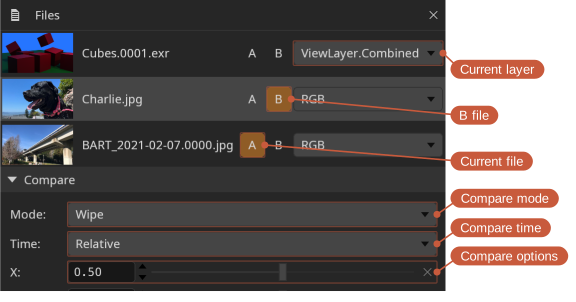
- Current file (the A file)
- B files (multiple B files can be set in tile mode)
Image sequences with audio
Audio can be paired with an image sequence either automatically or manually.
To pair audio automatically, open the Image Sequences section in the Settings tool. You can either list the file extensions DJV should look for (for example, .wav .mp3), or provide a specific file name to match.
To pair audio manually, use the menu File/Open With Audio.
USD
USD support is currently experimental. When a USD file is opened, DJV renders it to an image sequence using the Hydra renderer.
DJV picks the rendering camera in this order:
- The clip name, if the USD file is referenced from an OTIO file
- The primary camera in the scene
- The first camera found in the scene
- A temporary camera generated to frame the scene