View
The view displays the current file. You can pan, zoom, or frame the view so the image fills the available space.
Default view controls:
- Pan — Middle mouse button
- Zoom — Mouse wheel, or the - and = keys
- Frame view (fit image to view) — Backspace
- Wipe (in compare mode) — Alt + left mouse button
- Color picker — Ctrl + left mouse button
- Frame shuttle (scrub frames by dragging) — Left mouse button
View controls can be remapped in the Mouse section of the Settings tool.
Framing and zoom
The view can be framed (fit to the view), reset to 1:1, or zoomed in and out from the View menu and the zoom control on the View tool bar.
Locations: View menu, View tool bar, View tool
Color channels
Individual color channels can be isolated to inspect them.
Locations: View menu
Shortcuts:
- Red — R
- Green — G
- Blue — B
- Alpha — A
Mirror
The image can be mirrored horizontally or vertically.
Locations: View menu
Shortcuts:
- Mirror horizontal — H
- Mirror vertical — V
Position and zoom
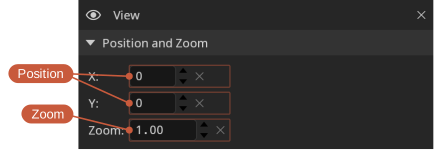
The Position and Zoom section of the View tool shows the exact view position and zoom level, and lets you set them numerically.
Locations: View tool
Options
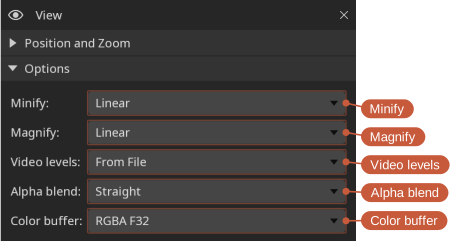
- Minify — Filter used when the image is scaled down (Nearest or Linear).
- Magnify — Filter used when the image is scaled up. Use Nearest to see individual pixels without smoothing.
- Video levels — How video levels are interpreted: from the file, full range, or legal range.
- Alpha blend — How the alpha channel is blended: none, straight, or pre-multiplied.
- Color buffer — The view’s bit depth. The default, RGBA F32, is recommended because it preserves the full range of color values without clamping. Lower bit-depth options can be faster, but they can clamp colors — choose them only when performance is more important than precision.
Aspect ratio
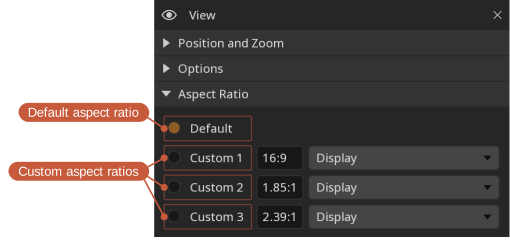
The pixel aspect ratio can be left at the file’s default or overridden. Up to three custom aspect ratios can be defined.
Locations: View menu, View tool
Background
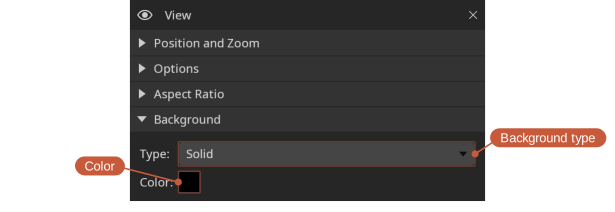
The view background color can be customized.
Locations: View tool
Grid
A grid overlay can be shown to identify areas in the view.
Locations: View menu, View tool
Shortcut: Ctrl+G
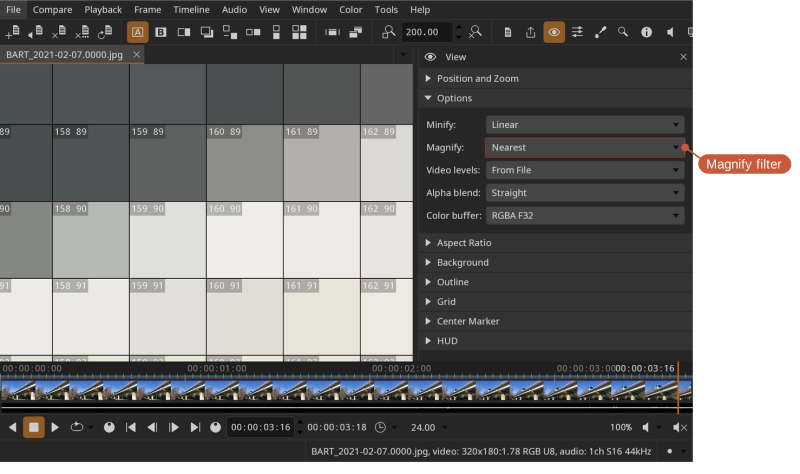
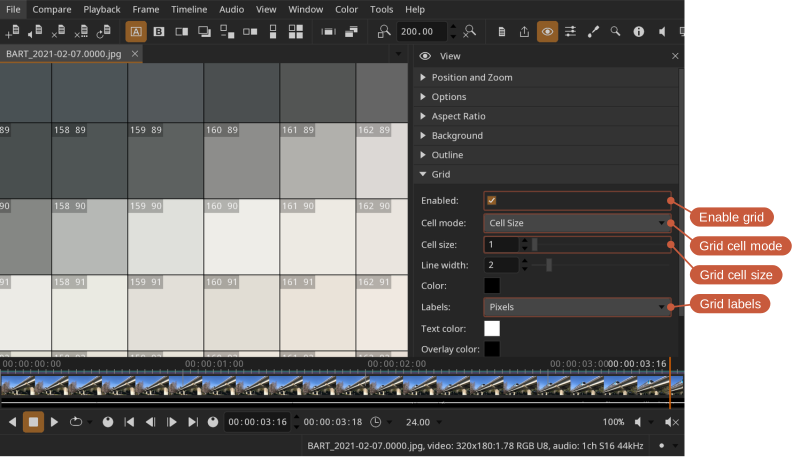
The grid can also help you inspect individual pixels. To do so:
- Set Magnify to Nearest
- Enable the grid
- Set the grid cell mode to
Cell Size - Set the grid size to
1 - Set the grid labels
Outline
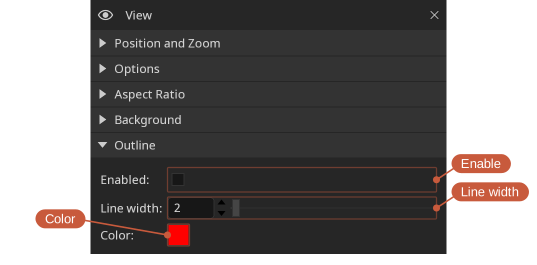
An outline can be drawn around the image to make transparent regions easier to distinguish from the background.
Locations: View tool
Center marker
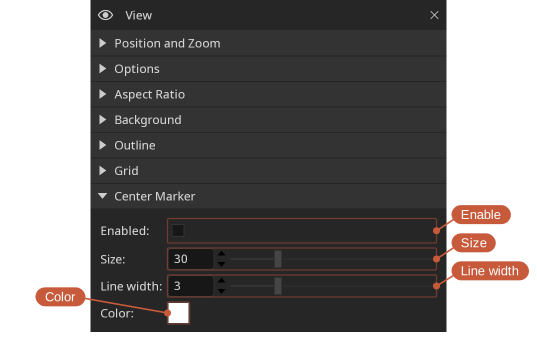
A marker can be shown at the center of the view to help with alignment and framing. Its size, line width, and color can be customized.
Locations: View menu, View tool
HUD
The heads-up display (HUD) overlays useful information on top of the view.
Locations: View menu
Shortcut: Ctrl+H
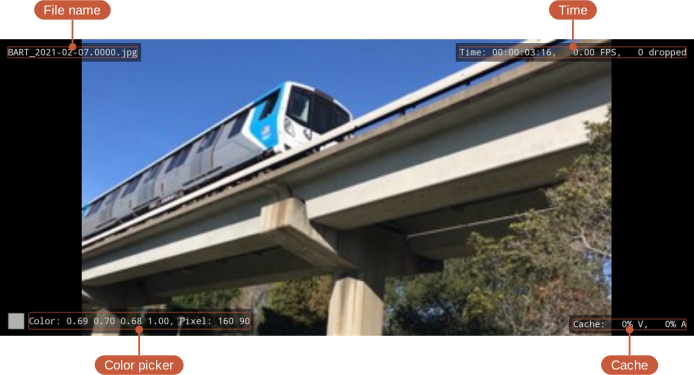
- Time - Current frame, actual playback speed (the rate DJV is achieving, which may differ from the requested rate), number of frames dropped during playback.
- Cache - Video (V) and audio (A) cache fill (%)